Add new service order - Customer
After logging into the Checkpoint system using your customer login.
Add a New Service Order
1. In the "Service Order" section, locate and click the "ADD" button at the top right corner of the screen.
Fill in the Service Order Details
1. After clicking "ADD," a pop-up will appear where you'll need to enter the necessary information.
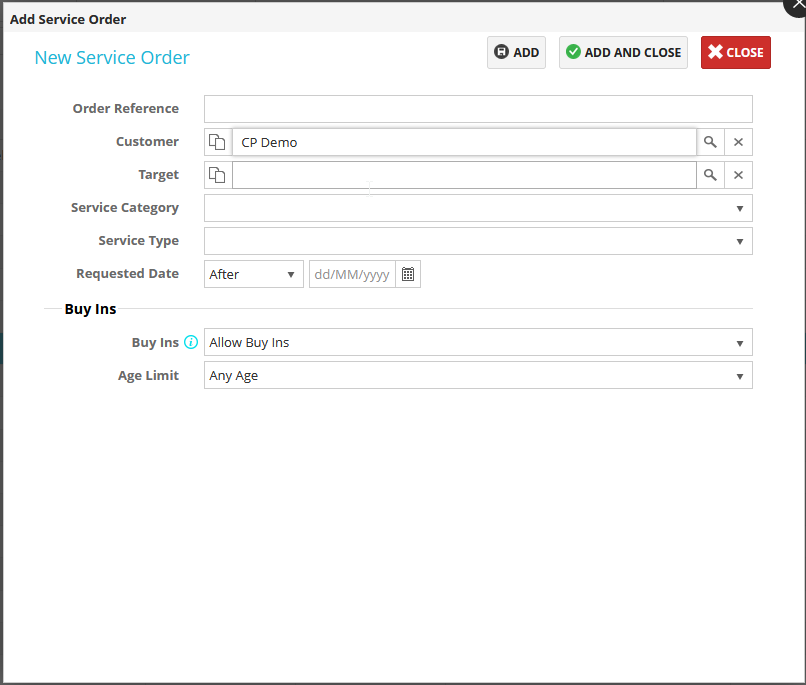
2. Complete the following mandatory fields:
- Order Reference - This is free text field so you can identify you bought audit.
- Customer will be prefilled.
- Target - Use the search feature to find the appropriate target you wish to add an audit to.
- Service Category
- Service Type - If self assessment, you will be requested to input an email address (this is who the self assessment will go to) and language of email.
- Requested Date - Will only show for physical audits, when you want the audit to take place.
3. If you want to the system to buy in if an appropriate audit already exists, make sure Buy-ins is set to "Allow Buy Ins". If you do not, set to "Do not allow buy ins"
Use the age limit drop down when buying in if you want to only buy in to certain age audits.
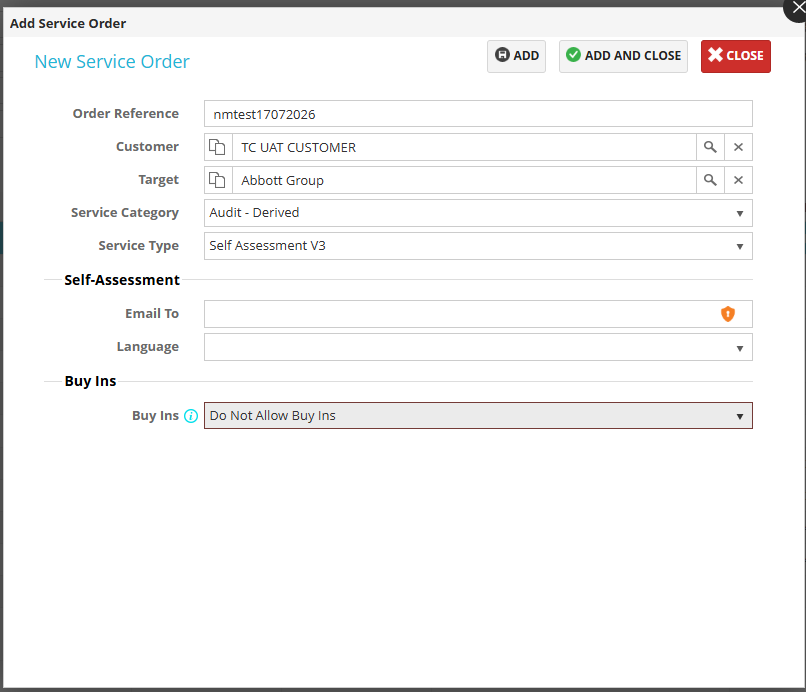
4. Load the audit onto the system by pressing "Add and Close"
5. Once the audit has been added, the quote will need to be Accepted by CheckPoint IT staff. Once Accepted, the audit will add to the system for the designated target. Another option which avoids audits having to be accepted is to pre-load quotas for your customer. Speak to your CP Account Manager or IT to set these up.
5. If you have the correct quota or contract items in place to purchase audits, the audit will be added to the system, If you do not, you will be notified.
IMPORTANT NOTE: Once you have loaded the service order onto the system, please check the following:
- Has the correct service type been loaded? If unsure speak to your account manager or Checkpoint Support
- Has the order been loaded against the correct target.
- Has the order resulted in a buy-in? Is this correct?
- If the order is a buy-in, how old is the purchased audit?
Related Articles
Checkpoint New Customer Onboarding
? Introduction Checkpoint is a cloud-based audit tool, specifically designed to assess and manage risk associated with tourism properties, service offerings and activities. This guide will walk you through the basics to get you started and help you ...Requesting a new audit
Requesting a new audit Step 1 – Download audit request template: If you do not already have a template available, please download the template attached to this article. Please ensure you have the latest template version. In doubt, you can download it ...Checkpoint Customer Standard Reports
Here is a list of checkpoint standard reports along with a brief description. Name - AA With IGWH Indication Parameters - Date From and To Description - All audit activities along with other details within CP, which also includes Internal Gas Water ...Customer Guide for resending emails from Checkpoint when Not a Buyin
In the “Service Orders” section, find the audit you would like to chase by searching for the Target name. Open the service order by double clicking on the row: Click the icon highlighted below to view the Target details: Navigate to the email log and ...Detailed guide on using Checkpoint as a Customer
Attached is a guide on using the main features of using Checkpoint as a customer.